Environment variables_
Use project, function, and site environment variables to pass constants and secrets to your Appwrite Functions and Appwrite Sites at build and runtime.
4 min read
Environment variables let you pass constants and secrets such as API keys, connection strings, and feature flags into your Appwrite Functions and Appwrite Sites at build and runtime. Storing values outside your source keeps secrets out of version control and lets you change configuration without code changes.
Appwrite supports three scopes of environment variables:
- Project variables are shared across every function and site in the project. Use them for values consumed by more than one resource, such as a shared third-party API key, a database URL, or a feature flag.
- Function variables are scoped to a single function. Use them for values only that function needs.
- Site variables are scoped to a single site. Use them for values only that site needs.
When the same key is defined in multiple scopes, the more specific scope wins. Function or site variables override project variables, and Appwrite-injected variables (those prefixed with APPWRITE_) take final precedence and cannot be overridden.
Variable changes only take effect on the next deployment. Redeploy your functions or sites after creating, updating, or deleting variables.
Project variables
Project variables are available to every function and site in your project. They are managed at the project level and merged into each function or site's environment automatically at build and runtime.
This page covers how to manage project variables. To manage variables on a single function or site, see the dedicated pages:
Function variables
Manage variables for a single function.
Site variables
Manage variables for a single site.
Manage in the Console
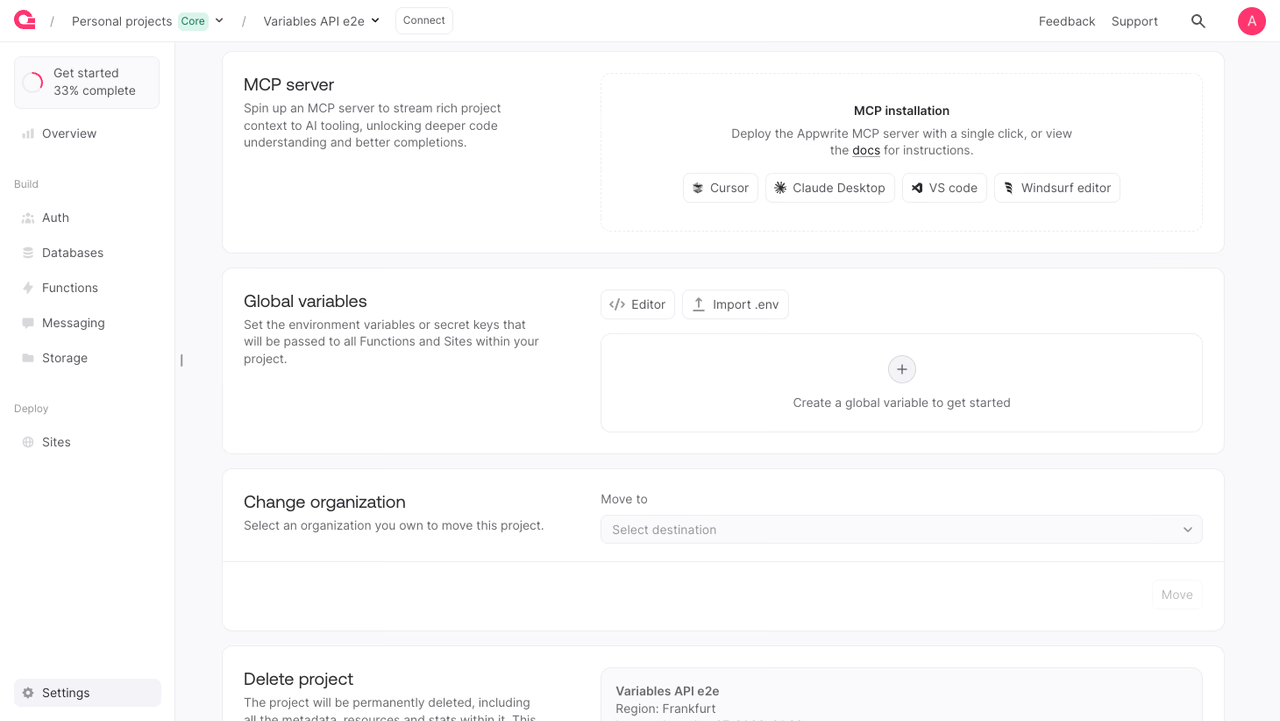
You can create and manage project variables from the Appwrite Console. The Console refers to them as Global variables:
- Navigate to your project.
- Open Settings at the bottom of the project sidebar, then select the Variables tab. The Global variables card is on that tab.
- Click Create a global variable and enter a key and value.
- Optionally select the Secret checkbox to prevent any team member from reading the value after creation.
- Click Create, then redeploy your functions and sites for the change to take effect.
Manage with a Server SDK
You can also manage project variables programmatically using a Server SDK.
The API key used for these calls needs project.read to list or fetch variables, and project.write to create, update, or delete them.
Create a variable
import { Client, Project, ID } from 'node-appwrite';
const client = new Client()    .setEndpoint('https://<REGION>.cloud.appwrite.io/v1') // Your API Endpoint    .setProject('<YOUR_PROJECT_ID>') // Your project ID    .setKey('<YOUR_API_KEY>'); // Your API key
const project = new Project(client);
const result = await project.createVariable({    variableId: ID.unique(),    key: '<KEY>',    value: '<VALUE>',    secret: false // optional});
List variables
You can paginate, filter, and sort the result. See Queries for the query syntax. The list endpoint accepts queries on the key, value, and secret attributes.
import { Client, Project } from 'node-appwrite';
const client = new Client()    .setEndpoint('https://<REGION>.cloud.appwrite.io/v1') // Your API Endpoint    .setProject('<YOUR_PROJECT_ID>') // Your project ID    .setKey('<YOUR_API_KEY>'); // Your API key
const project = new Project(client);
const result = await project.listVariables({    queries: [], // optional    total: false // optional});
Get a variable
import { Client, Project } from 'node-appwrite';
const client = new Client()    .setEndpoint('https://<REGION>.cloud.appwrite.io/v1') // Your API Endpoint    .setProject('<YOUR_PROJECT_ID>') // Your project ID    .setKey('<YOUR_API_KEY>'); // Your API key
const project = new Project(client);
const result = await project.getVariable({    variableId: '<VARIABLE_ID>'});
Update a variable
You can change a variable's key, value, or secret flag. Marking a variable as secret is one-way. Once set, the value is no longer readable from the Console or API.
import { Client, Project } from 'node-appwrite';
const client = new Client()    .setEndpoint('https://<REGION>.cloud.appwrite.io/v1') // Your API Endpoint    .setProject('<YOUR_PROJECT_ID>') // Your project ID    .setKey('<YOUR_API_KEY>'); // Your API key
const project = new Project(client);
const result = await project.updateVariable({    variableId: '<VARIABLE_ID>',    key: '<KEY>', // optional    value: '<VALUE>', // optional    secret: false // optional});
Delete a variable
import { Client, Project } from 'node-appwrite';
const client = new Client()    .setEndpoint('https://<REGION>.cloud.appwrite.io/v1') // Your API Endpoint    .setProject('<YOUR_PROJECT_ID>') // Your project ID    .setKey('<YOUR_API_KEY>'); // Your API key
const project = new Project(client);
const result = await project.deleteVariable({    variableId: '<VARIABLE_ID>'});
Secret variables
Mark a variable as Secret to hide its value from the Console and API after creation. Only the function or site runtime can read the value at build and runtime. Team members and external integrations cannot retrieve it after creation.
You can mark a variable as secret either when you create it or by updating an existing variable. Marking a variable as secret cannot be reversed. To replace a secret value, delete the variable and create a new one with the same key.
Override behavior
When the same key is defined in multiple scopes, more specific scopes take precedence:
- Project variables are merged into the runtime environment first.
- Function or site variables override matching keys from project scope.
- Appwrite-injected variables (those prefixed with
APPWRITE_) override matching keys from both scopes and cannot be customized.
This lets you set a default at the project level (for example, LOG_LEVEL=info) and override it for a specific function or site that needs different behavior.
Limits
| Field | Limit |
|---|---|
| Variable ID | 36 characters, a-z A-Z 0-9 . - _ |
| Key | 255 characters |
| Value | 8192 characters |
Was this page helpful?
Share what worked or what we should fix. Once approved, our agents automatically apply suggested updates to the docs.