Zenflow_
Learn how to add the Appwrite MCP server to agents in Zenflow to interact with both the Appwrite API and documentation.
1 min read
1. Quick start prompts
Get started quickly with these pre-built prompts for common Appwrite integrations:


2. Add the MCP server
Connect the Appwrite MCP server to Zenflow for deeper integration with the Appwrite API and documentation. It is a remote HTTP server, so there are no additional pre-requisites to install.
To add the Appwrite MCP server, open Zenflow and go to the Settings > MCP servers. From there, select your agent you want to configure MCP for, and then add your custom MCP server.
{ "mcpServers": { "appwrite": { "url": "https://mcp.appwrite.io/", "type": "http" } }}The server uses OAuth for authentication. When Zenflow first connects to the server, complete the sign-in flow in your browser to sign in to your Appwrite account and authorize access.
Click Save. Once you save the configuration, Zenflow will connect with the MCP server and load all available tools.
3. Test the integration
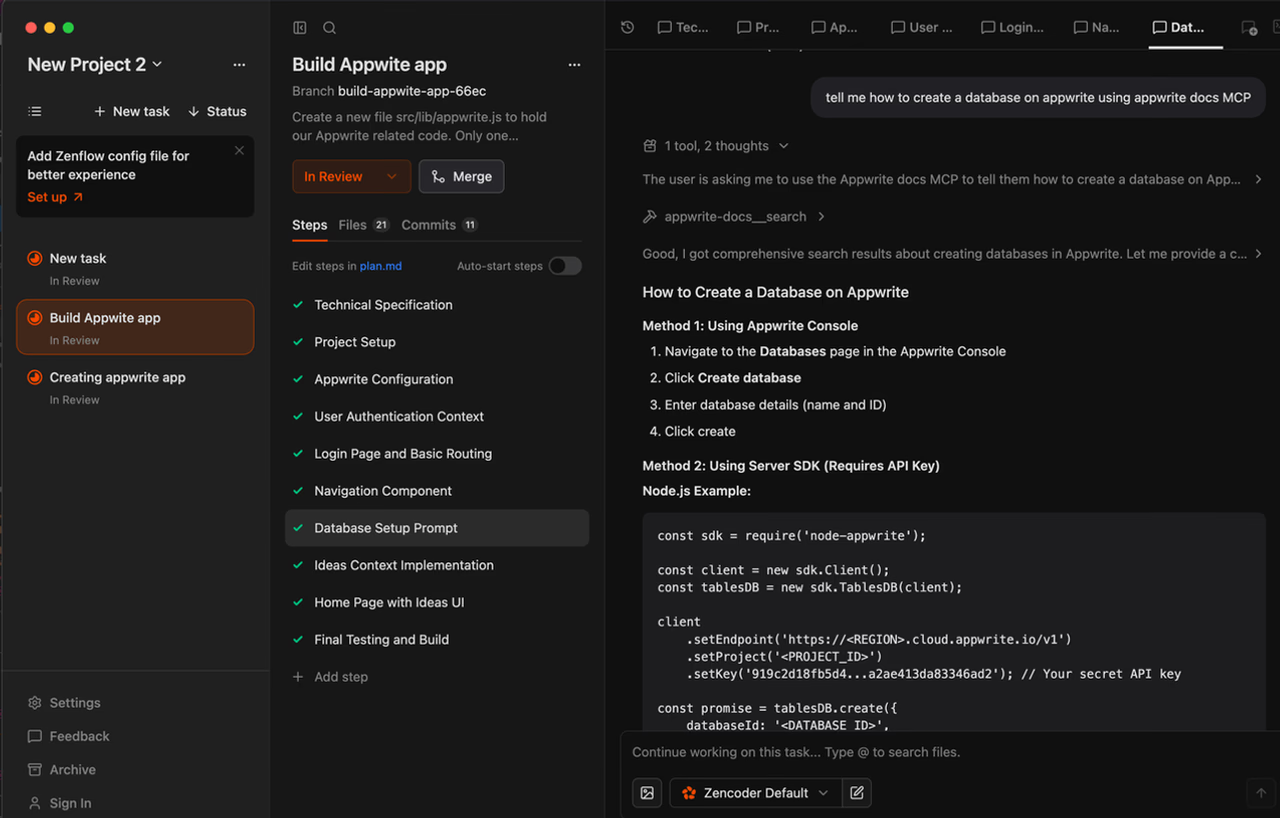
Open Zenflow Chat of your existing task to test your MCP integrations. If you don't have an existing task, you can create one by clicking New Task, selecting a task type, and writing a task description. Click Create and Run. If you are new to Zenflow, learn more about how to set up Zenflow.
You can try out the following example prompts:
Example prompts:
Create a new user in my Appwrite projectList all databases in my projectShow me the tables in my databaseHow do I set up real-time subscriptions in Appwrite?Show me how to authenticate users with OAuthHow do I implement file uploads with Appwrite Storage?
Was this page helpful?
Share what worked or what we should fix. Once approved, our agents automatically apply suggested updates to the docs.