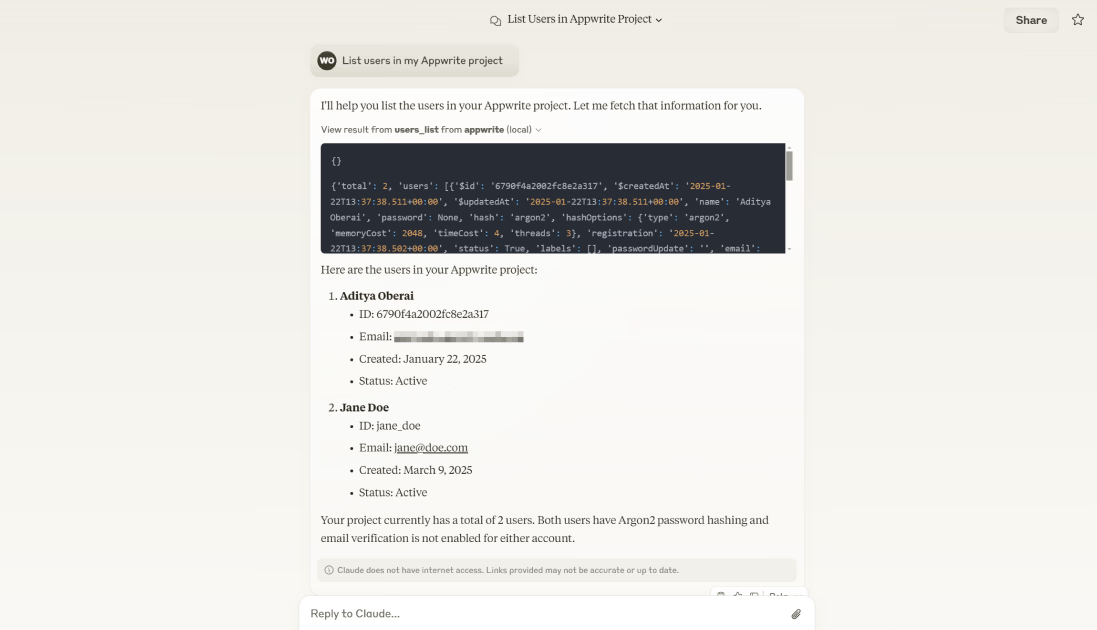
Get started quickly with these pre-built prompts for common Appwrite integrations:
Browse all quick start prompts
Connect Appwrite MCP servers to Claude Desktop for deeper integration with the Appwrite API and documentation.
Before you begin, ensure you have the following pre-requisites installed on your system:
In the Claude Desktop app, open the app's Settings page (press CTRL + , on Windows or CMD + , on MacOS) and head to the Developer tab.
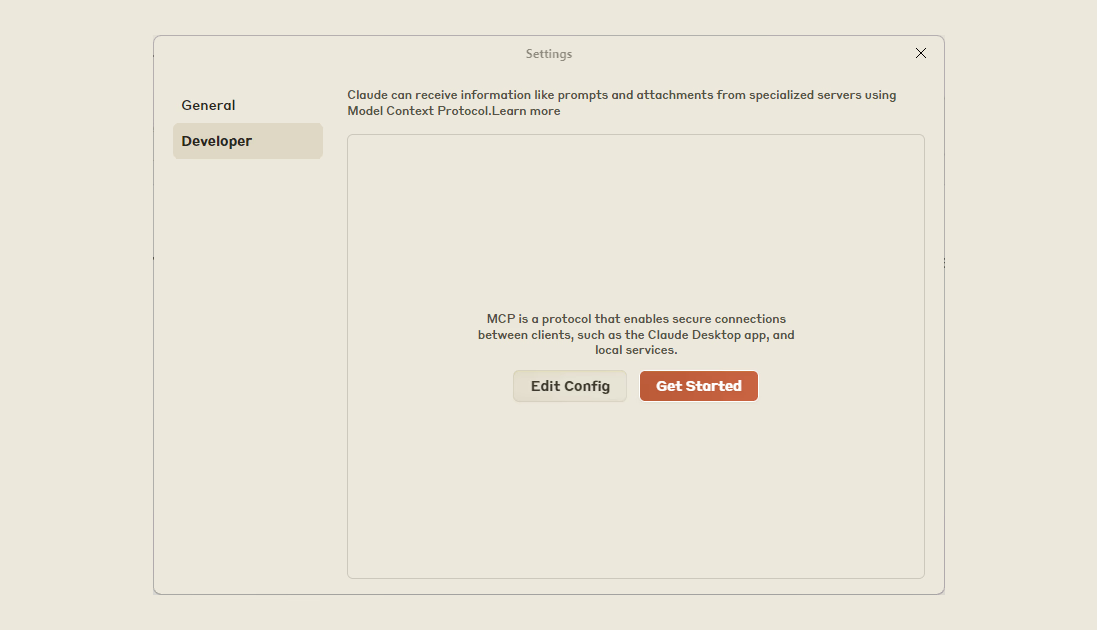
Clicking on the Edit Config button will take you to the claude_desktop_config.json file. In case the file is missing, please visit the Model Context Protocol docs.
Choose which MCP server you want to configure:
Add the API server to your configuration:
{
    "mcpServers": {
        "appwrite-api": {
            "command": "uvx",
            "args": [
                "mcp-server-appwrite"
            ],
            "env": {
                "APPWRITE_PROJECT_ID": "your-project-id",
                "APPWRITE_API_KEY": "your-api-key",
                "APPWRITE_ENDPOINT": "https://<REGION>.cloud.appwrite.io/v1"
            }
        }
    }
}
Configuration:
- Replace
your-project-idwith your actual Appwrite project ID - Replace
your-api-keywith your Appwrite API key - Replace
<REGION>with your Appwrite Cloud region (e.g.,nyc,fra)
Add the docs server to your configuration:
{
  "mcpServers": {
    "appwrite-docs": {
      "command": "npx",
      "args": [
        "mcp-remote",
        "https://mcp-for-docs.appwrite.io"
      ]
    }
  }
}
Why do we use the mcp-remote package?
Unlike other IDEs, Claude Desktop only supports local (stdio) MCP servers and not remote servers. The mcp-remote package acts as a proxy to connect to the docs MCP server.
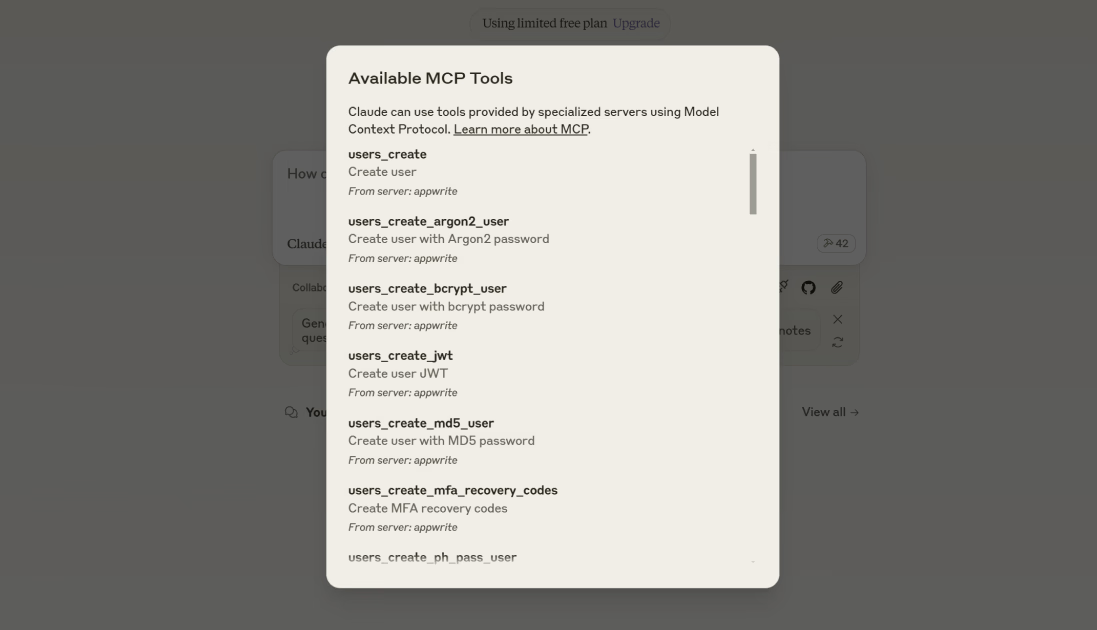
Restart the Claude Desktop app, click on the MCP tools button (at the bottom right section of the prompt input) and click on it to view available Appwrite MCP tools.
uvx ENOENT error
In case you see a uvx ENOENT error, ensure that you either add uvx to the PATH environment variable on your system or use the full path to your uvx installation in the config file.
Try out the following example prompts based on the MCP server you have configured:
Example prompts:
Create a new user in my Appwrite projectList all databases in my projectShow me the collections in my databaseCreate a new document in my collectionDelete a specific user by ID
Example prompts:
How do I set up real-time subscriptions in Appwrite?Show me how to authenticate users with OAuthWhat are the best practices for database queries?How do I implement file uploads with Appwrite Storage?Show me an example of using Appwrite Functions