Start with Analytics_
Track your first website visit with Appwrite Analytics. Create a property, add the Web SDK's tracking helper to your site, and see the visit on the dashboard.
2 min read
In this quick start you create an analytics property, add tracking to a website with the Appwrite Web SDK, and see your first visit on the dashboard.
Add your site to the project
Appwrite accepts events from a browser only when the site's hostname belongs to one of the project's apps. If your site isn't one yet, add it.
- Sign in to Appwrite Cloud and open a project.
- Open Apps in the sidebar and click Add app.
- Choose Web, enter your site's hostname, such as
example.com, and finish the wizard.
Add localhost the same way to track your site while you develop.
Create a property
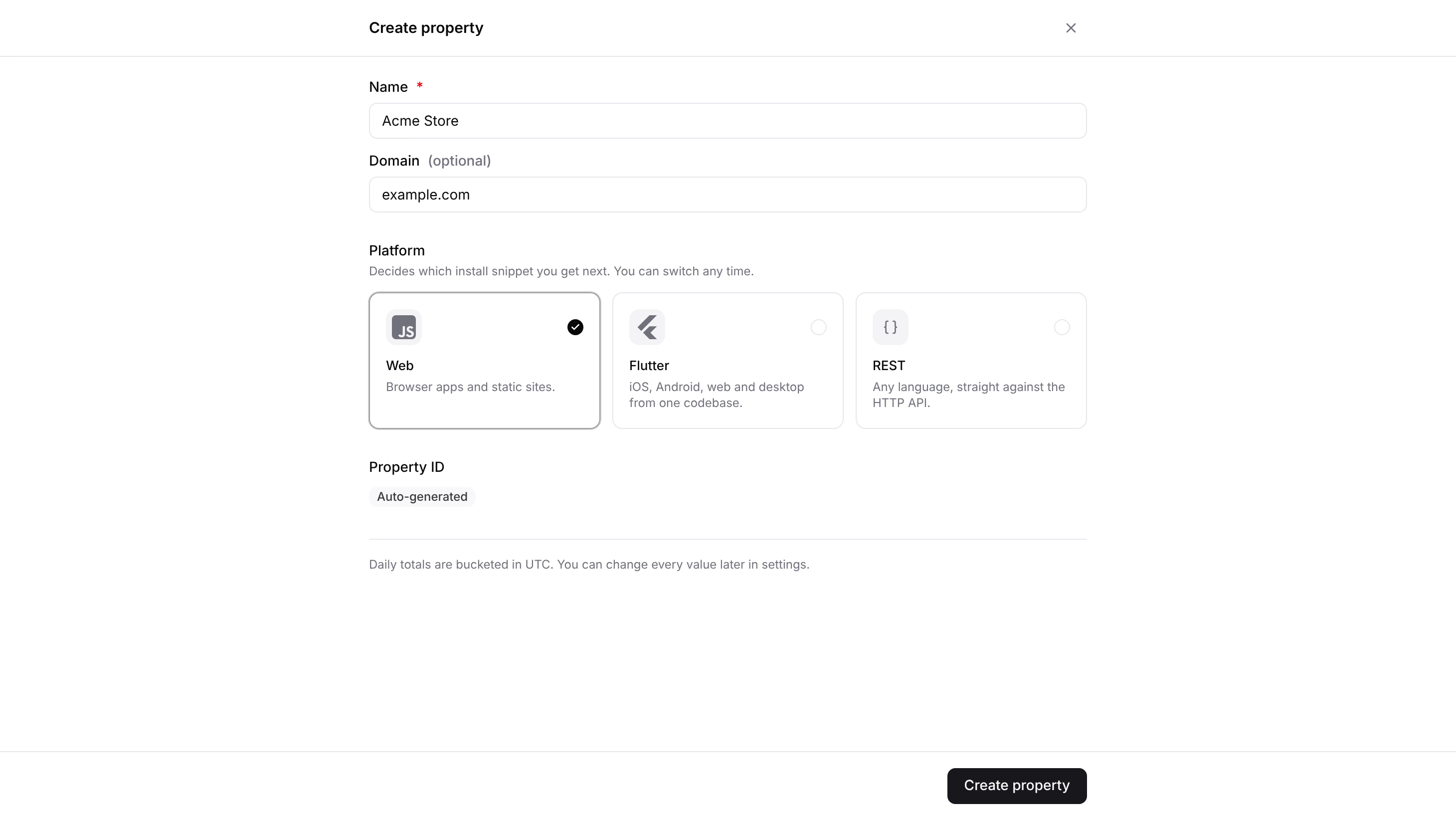
A property collects the events of one site or app.
- Open Analytics in the sidebar and click Create property.
- Enter a Name, such as
Acme Store. - Enter your site's Domain, such as
example.com. - Keep Web selected under Platform.
- Click Create property.
The Console opens the install screen and waits for your site's first event.
Add tracking to your site
Install the Web SDK in your site's project.
npm install appwriteAdd this code so it runs once in the browser when your site loads, for example in the entry file of your app or in a component at its root. The install screen shows the same setup with your endpoint, project ID, and property ID filled in.
import { Client, Analytics, Tracking } from 'appwrite';
const client = new Client()    .setEndpoint('https://<REGION>.cloud.appwrite.io/v1')    .setProject('<PROJECT_ID>');
const tracking = new Tracking(new Analytics(client), '<PROPERTY_ID>');
tracking.start();
start() records pageviews, outbound link clicks, scroll depth, and engagement time.
See your first visit
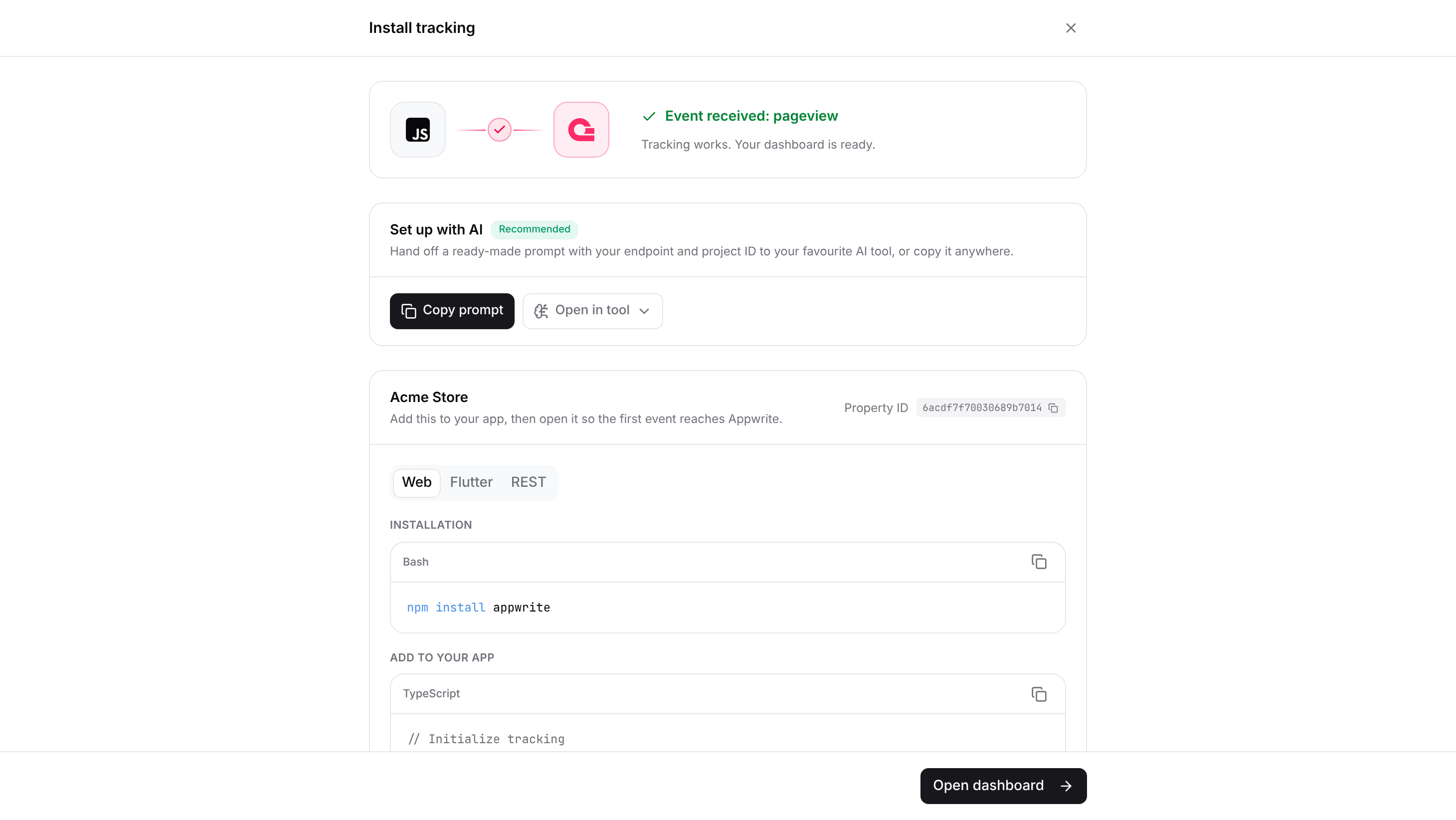
Open your site in a browser. Within a few seconds, the install screen shows Event received with the first pageview.
Click Open dashboard to see the visit, with its page, source, location, browser, and device.
Next steps

Track a website
Load the SDK from a CDN, track file downloads, choose which events to send, and respect Do Not Track.
Track custom events
Record signups, purchases, and other actions that matter to your product.
Dashboard
Read the metrics, chart, and cards that break down your traffic.

Track a Flutter app
Track screens and app lifecycle events in Android, iOS, web, and desktop apps.
Was this page helpful?
Share what worked or what we should fix. Once approved, our agents automatically apply suggested updates to the docs.