Track custom events_
Record the actions that matter to your product in Appwrite Analytics, such as signups and purchases, with event names and props from the browser, Flutter, or your server.
3 min read
Pageviews show where people go. Custom events show what they do there: a signup, a purchase, an invite sent, a plan upgraded. Each custom event has a name and optional props, and appears in the Custom events card on the property's dashboard.
Send an event
Send a custom event with the tracking helper on the client, or with createEvent from your server.
tracking.track('signup_completed', { props: { plan: 'pro', source: 'pricing_page' },});These examples continue from the setup in Track a website, Track a Flutter app, and Track events from your server. On the web, an event belongs to the current page unless you pass a url option.
Name your events
Event names are up to 64 characters. Pick names that describe a finished action, in lowercase snake_case with the object first and the verb second, such as signup_completed, invite_sent, or plan_upgraded. Keep names stable once you ship them: a renamed event starts a new row on the dashboard, and the old name keeps its history.
The tracking helpers use these names for their automatic events, so don't reuse them for your own:
pageviewoutbound_linkfile_downloadscroll_depthengagement_timescreen_viewapp_backgroundedapp_foregrounded
An event you send as pageview counts toward pageviews, bounce rate, and entry and exit pages, like any other pageview.
Add props
Props add detail to an event, such as the plan someone chose or the button they clicked. Each event takes up to 16 props. Keys and values are text up to 255 characters each.
The Web and Flutter helpers take props as a map and turn each value into text. createEvent and REST take a flat list that alternates keys and values. A key without a value at the end of the list is dropped.
Appwrite stores props with the event. Don't put personal data such as email addresses or names in props.
Track an AI agent
On an Agent property, send one event per model call and one per tool call. The Models and tools card counts them by the model and tool props:
| Event | Props |
|---|---|
model_called | model, such as gpt-5 or claude-sonnet-5-5. Optionally provider. |
tool_called | tool, such as web_search. |
await analytics.createEvent({ propertyId: '<PROPERTY_ID>', name: 'model_called', url: 'https://agent.example.com/run', props: ['model', 'gpt-5', 'provider', 'openai'], userId: '<USER_ID>',});The card appears once either prop arrives. Click a model or tool to filter the whole dashboard to it. Props are stored as text, so token counts can't be added up yet.
Track a virtual pageview
Some steps don't change the URL, such as the steps of a checkout form or a modal that works like a page. On the web, record them as pageviews with a URL of your own.
tracking.pageview('https://example.com/checkout/payment');Pass a full URL, including the scheme.
Find events on the dashboard
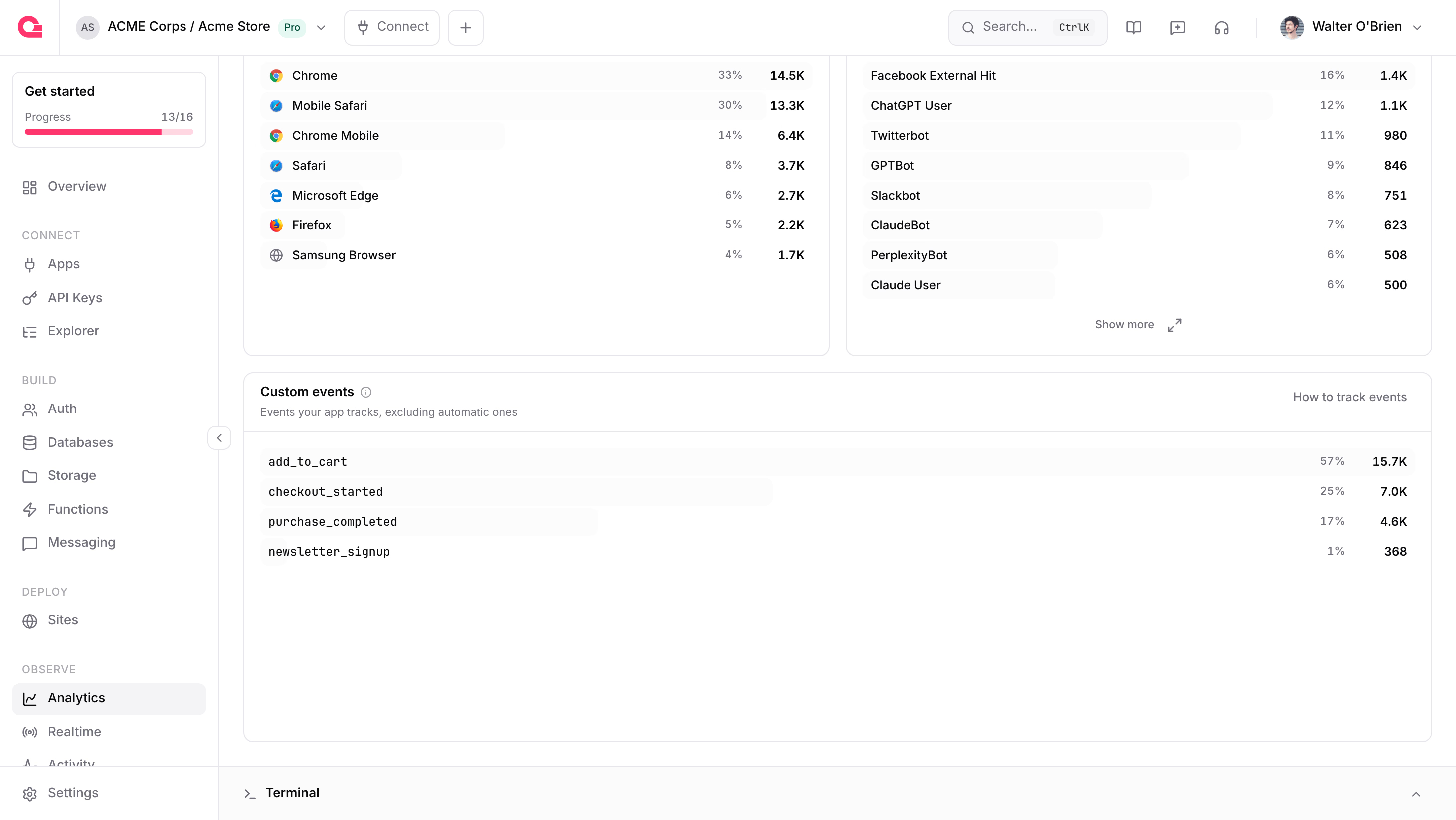
The Custom events card lists every event name your app sends, except the automatic events above. Click an event to filter the whole dashboard to it. Unique visitors and Visits then add up, for each point on the chart, the people and visits that triggered the event, and the Pages, Locations, and Technology cards break those events down by page, location, and device.
Views per visit, Bounce rate, Visit duration, and Engagement time describe whole visits, so they show - while an event filter is on. For more on filters, see Filter and compare traffic.
Was this page helpful?
Share what worked or what we should fix. Once approved, our agents automatically apply suggested updates to the docs.