Rendering strategies
Appwrite allows you to host both statically-generated and server-rendered websites.
Static sites are websites that are pre-built and served as-is to clients. They do not execute server-side code on each request. They are ideal for use-cases such as Single Page Applications (SPAs), documentation sites, personal blogs, and portfolio websites.
Server-side rendered (SSR) sites generate content dynamically on the server and send fully rendered pages for each request. They are ideal for use-cases with substantial dynamic content or server-side processing such as e-commerce platforms, social media applications, content management systems (CMS), and real-time collaboration tools.
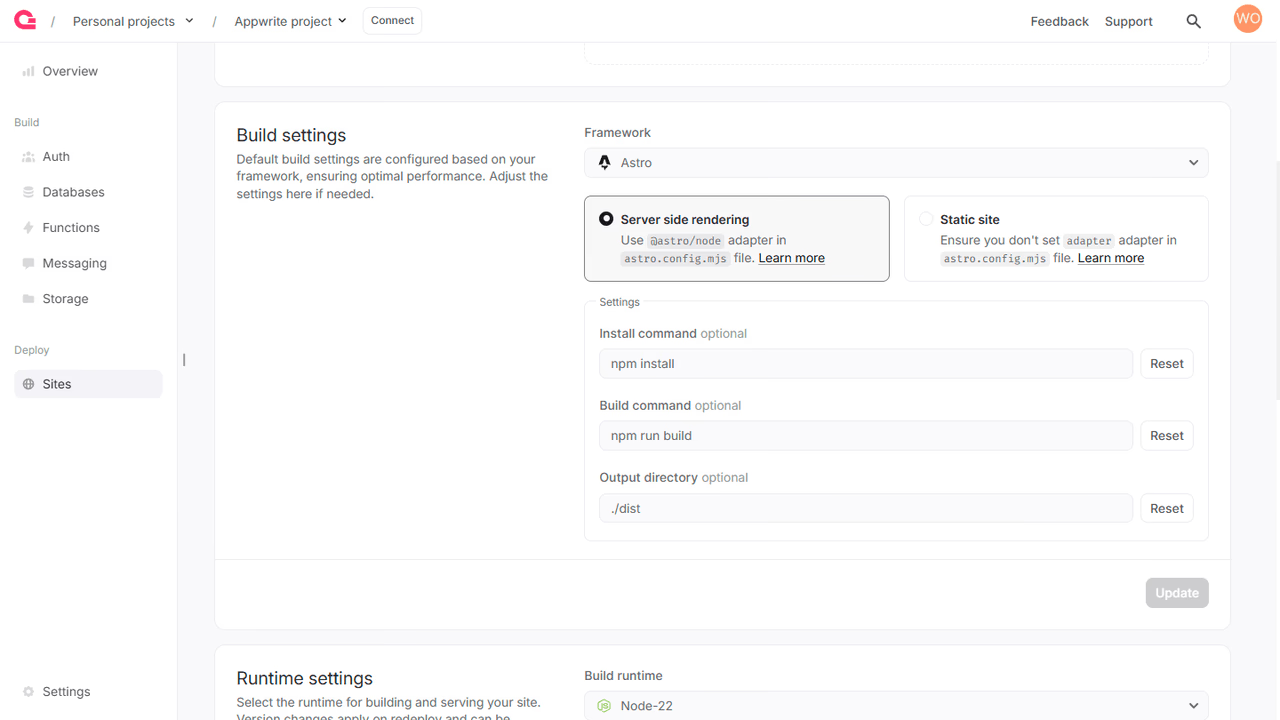
You can configure your preferred rendering strategy through the following steps:
- Navigate to your site on Appwrite Console.
- Head to the Settings tab > Build settings section.
- Select the SSR or the Static checkbox.
- Confirm that the appropriate install command, build command, and output directory are set.
- (For SPAs) Add a fallback file.
- Click on the Update button and redeploy your site.
Timeouts
Each request made to a path on an Appwrite Site has a set time limit, after which the request will timeout. Here are the steps to configure those timeout period:
- Navigate to your site on Appwrite Console.
- Head to the Settings tab > Timeout section.
- Add an appropriate time limit (in seconds).
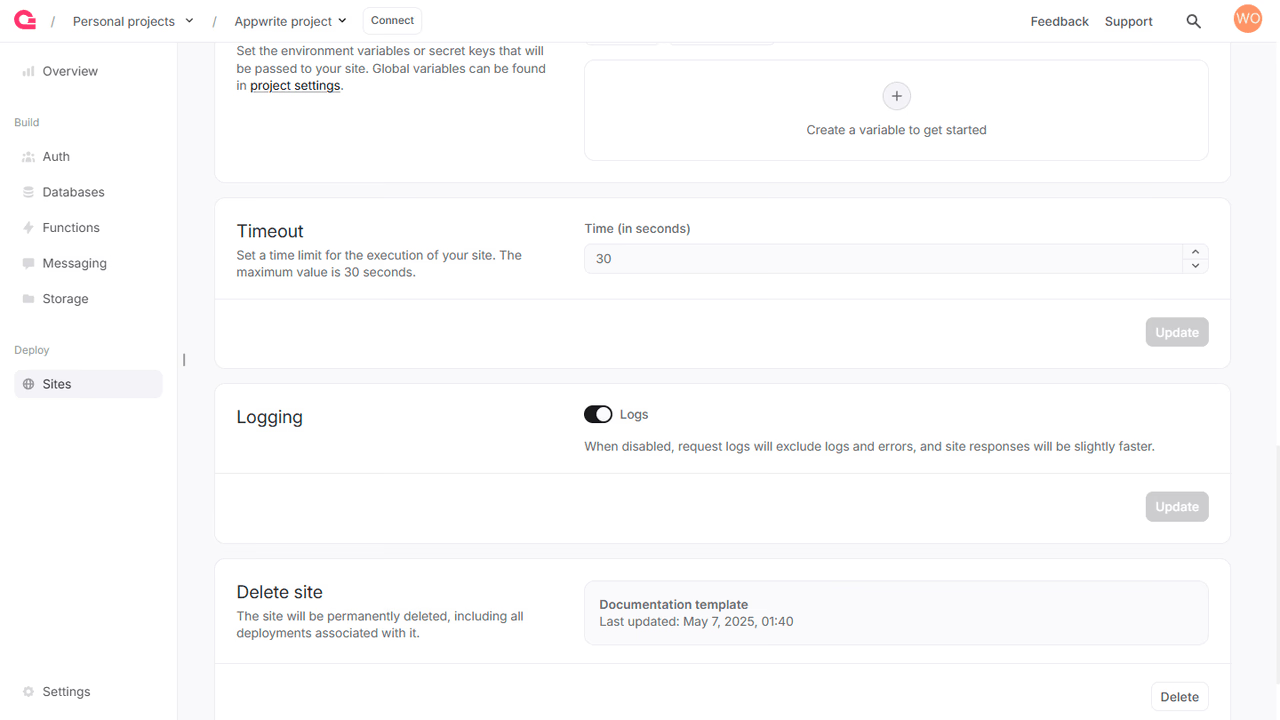
The default timeout is set at 15 seconds and the maximum value possible is 30 seconds.
Resource limits
Under Settings - Resource limits, you can set build and runtime specifications independently. The build spec applies while dependencies are installed and your site is built for deployment; the runtime spec applies when your site serves traffic, including server-side rendering (SSR). Both use the same CPU and memory tiers on Cloud.
On Appwrite Cloud, customizing specifications requires the Pro plan. See Compute for tiers, GB-hours, and pricing.
Build timeouts
On Appwrite Cloud, the build phase of each deployment must complete within your plan’s maximum build duration (for example, 15 minutes on Free and 45 minutes on Pro and Scale). See Build timeouts and the pricing page.
Ephemeral API key
Server code in a site often needs more access than a visitor's session grants, for example to create a user, send an email OTP, or write to a collection no user has permission on. Instead of storing an API key as an environment variable, Appwrite Sites generates a ephemeral API key for the site. Appwrite creates it automatically, limits it to the scopes granted to the site, and expires it on its own, so there is no long-lived secret to store or rotate.
Ephemeral API keys can only be used inside the site's build and SSR executions. Appwrite provides them in two places:
- At build time as the environment variable
APPWRITE_SITE_API_KEY. Use it in install and build commands that call your project, such as fetching content to prerender. - At run time as the
x-appwrite-keyrequest header. Appwrite mints a new key for every request routed to a server-side rendered site, and the key expires shortly after the site's timeout elapses. Static sites run no server code, so they receive the key only during the build.
Ephemeral API keys act without a session and bypass permissions, so use them only for operations Appwrite cannot authorize on the visitor's behalf. For everything a signed-in visitor does, forward their session as described in Server-side rendering with Appwrite Auth.
Scopes
A site starts with no scopes, so its ephemeral API key can call nothing until you grant some. Grant only the scopes your server code needs.
- In the Appwrite Console, navigate to Sites and open the site.
- Under the Settings tab, navigate to the Build section.
- In the Scopes card, select the scopes to grant the ephemeral key and click Update.
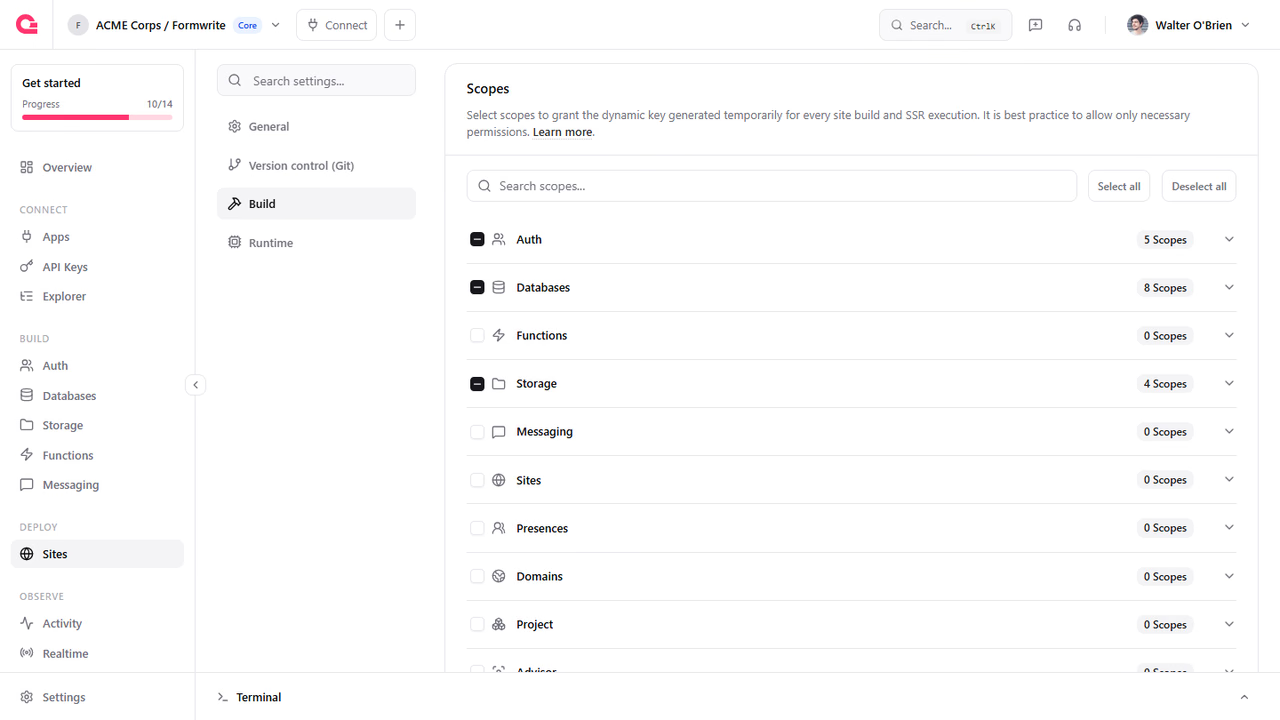
Scopes are stored on the site itself, so you can also set them with the scopes parameter of the create site and update site endpoints through a Server SDK, or with the repeatable --scopes flag of appwrite sites create and appwrite sites update in the Appwrite CLI. The update site endpoint replaces every setting you omit with its default. Only scopes and the Git connection are kept when omitted, so read the site first and pass every existing setting back along with the new scopes.
import { Client, Sites } from 'node-appwrite';
const client = new Client()    .setEndpoint('https://<REGION>.cloud.appwrite.io/v1')    .setProject('<PROJECT_ID>')    .setKey('<API_KEY>'); // requires the sites.write scope
const sites = new Sites(client);
const site = await sites.get({    siteId: '<SITE_ID>'});
await sites.update({    siteId: site.$id,    name: site.name,    framework: site.framework,    enabled: site.enabled ?? undefined,    logging: site.logging ?? undefined,    timeout: site.timeout ?? undefined,    installCommand: site.installCommand ?? undefined,    buildCommand: site.buildCommand ?? undefined,    startCommand: site.startCommand ?? undefined,    outputDirectory: site.outputDirectory ?? undefined,    buildRuntime: site.buildRuntime ?? undefined,    adapter: site.adapter ?? undefined,    fallbackFile: site.fallbackFile ?? undefined,    installationId: site.installationId ?? undefined,    providerRepositoryId: site.providerRepositoryId ?? undefined,    providerBranch: site.providerBranch ?? undefined,    providerSilentMode: site.providerSilentMode ?? undefined,    providerRootDirectory: site.providerRootDirectory ?? undefined,    providerBranches: site.providerBranches ?? undefined,    providerPaths: site.providerPaths ?? undefined,    buildSpecification: site.buildSpecification ?? undefined,    runtimeSpecification: site.runtimeSpecification ?? undefined,    deploymentRetention: site.deploymentRetention ?? undefined,    scopes: ['users.read', 'users.write', 'sessions.write']});
Use the key in SSR code
Read the x-appwrite-key header on the server and pass it to setKey. Create the client per request instead of sharing one, because each key belongs to the request that carried it. The endpoint and project ID come from the APPWRITE_SITE_API_ENDPOINT and APPWRITE_SITE_PROJECT_ID variables that Appwrite injects at run time, so nothing has to be configured. Appwrite sets the header on every SSR request, so the examples read it without a fallback.
// src/lib/server/appwrite.tsimport { env } from '$env/dynamic/private';import { Client, Users } from 'node-appwrite';
export function createAdminClient(request: Request) {    const key = request.headers.get('x-appwrite-key')!;    const client = new Client()        .setEndpoint(env.APPWRITE_SITE_API_ENDPOINT)        .setProject(env.APPWRITE_SITE_PROJECT_ID)        .setKey(key);
return { users: new Users(client) };}// src/routes/+page.server.tsimport { createAdminClient } from '$lib/server/appwrite';
export const load = async ({ request }) => { const { users } = createAdminClient(request); const { total } = await users.list(); return { total };};// src/lib/server/appwrite.tsimport { headers } from 'next/headers';import { Client, Users } from 'node-appwrite';
export async function createAdminClient() { const key = (await headers()).get('x-appwrite-key')!; const client = new Client() .setEndpoint(process.env.APPWRITE_SITE_API_ENDPOINT!) .setProject(process.env.APPWRITE_SITE_PROJECT_ID!) .setKey(key);
return { users: new Users(client) };}// src/app/page.tsximport { createAdminClient } from '@/lib/server/appwrite';
export default async function Page() { const { users } = await createAdminClient(); const { total } = await users.list(); return <p>{total} users</p>;}// server/api/users.get.tsimport { Client, Users } from 'node-appwrite';
export default defineEventHandler(async (event) => { const key = getRequestHeader(event, 'x-appwrite-key')!; const client = new Client() .setEndpoint(process.env.APPWRITE_SITE_API_ENDPOINT!) .setProject(process.env.APPWRITE_SITE_PROJECT_ID!) .setKey(key);
const { total } = await new Users(client).list(); return { total };});// src/pages/api/users.tsimport type { APIRoute } from 'astro';import { Client, Users } from 'node-appwrite';
export const GET: APIRoute = async ({ request }) => { const key = request.headers.get('x-appwrite-key')!; const client = new Client() .setEndpoint(process.env.APPWRITE_SITE_API_ENDPOINT!) .setProject(process.env.APPWRITE_SITE_PROJECT_ID!) .setKey(key);
const { total } = await new Users(client).list(); return Response.json({ total });};Add the Dart server SDK with dart pub add dart_appwrite. Async components run only on the server, so they can read request headers and await Appwrite calls before the page renders.
// lib/pages/users.dartimport 'dart:io';
import 'package:dart_appwrite/dart_appwrite.dart' show Client, Users;import 'package:jaspr/dom.dart';import 'package:jaspr/server.dart';
class UsersPage extends AsyncStatelessComponent { const UsersPage({super.key});
Future<Component> build(BuildContext context) async { final key = context.headers['x-appwrite-key']!; final client = Client() .setEndpoint(Platform.environment['APPWRITE_SITE_API_ENDPOINT']!) .setProject(Platform.environment['APPWRITE_SITE_PROJECT_ID']!) .setKey(key);
final users = await Users(client).list(); return p([text('${users.total} users')]); }}Project dependencies
To install your dependencies before your site is built, you should add the relevant install command to your site’s build settings. Here are the steps to add the install command:
- Navigate to your site on Appwrite Console.
- Head to the Settings tab > Build settings section.
- Confirm that the appropriate install command is set.
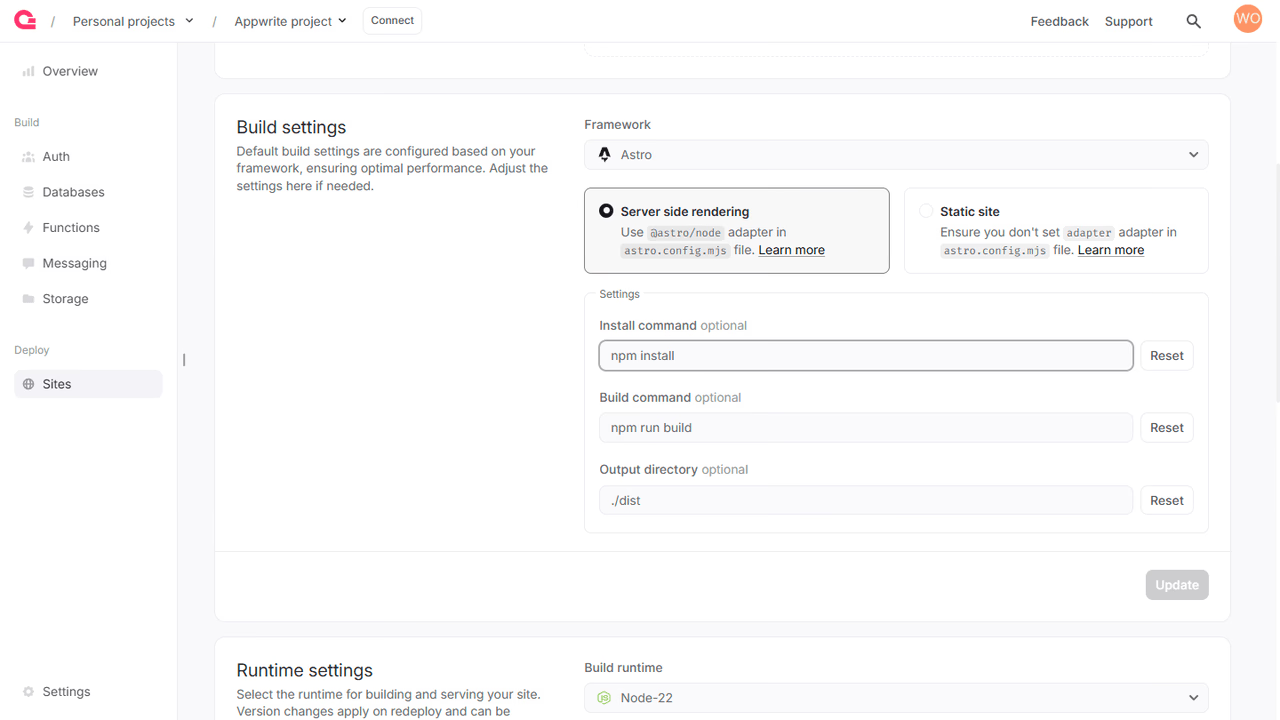
Make sure to include dependency files like package.json in your site's configured root directory. Do not include the dependency folders like node_modules in your site’s root directory. The dependencies installed for your local OS may not work in the site's environment.
Your site's dependencies should be managed by the package manager of each language. We include the following package managers and setup commands by default.
| Framework | Default package manager | Install command | Build command | Output directory | |
|---|---|---|---|---|---|
 | TanStack Start | npm | npm install | npm run build | ./.output with Nitro, ./dist without |
 | Next.js | npm | npm install | npm run build | ./.next |
 | Nuxt | npm | npm install or yarn install | npm run build or yarn build | ./.output |
 | SvelteKit | npm | npm install | npm run build | ./build |
 | Angular | npm | npm install | npm run build | ./dist/angular/browser |
 | Remix | npm | npm install | npm run build | ./build |
 | Astro | npm | npm install | npm run build | ./dist |
 | Flutter | pub | flutter pub get | flutter build web --release -t lib/main.dart | ./build/web |
 | Jaspr | pub | dart pub get | jaspr build | ./build/jaspr |
 | React Native | npm | npm install | npm run build | ./dist |
 | Other JavaScript | npm | (Empty) | (Empty) | ./ |
Was this page helpful?
Share what worked or what we should fix. Once approved, our agents automatically apply suggested updates to the docs.